CPOE for Medication Orders
Click the following dropdowns to see what's changed for this measure.
 What's New in 2020
The following table includes this measure's changes for 2020.
| Measure Changes for 2020 | |
|---|---|
| Name Changes | None |
| Measure Changes |
None |
| Workflow Changes |
None |
What Changed in 2019
The following table includes what changed for this measure in 2019.
| Measure Changes for 2019 | |
|---|---|
| Name Changes | None |
| Measure Changes |
None |
| Workflow Changes |
None |
Measure Overview
This measure reports the percentage of medication orders entered at the practice by a licensed healthcare professional who can enter orders into the medical record per state, local, and professional guidelines.
| Measure Overview | |
|---|---|
| Denominator | The number of medication orders created by the eligible clinician or provider during the measurement period. |
| Numerator | The number of medication orders that qualified for the denominator and were entered using computerized provider order entry (CPOE). |
| Medicaid Goal |
Must Exceed 60% |
See the following sections for more information about the CPOE for Medication Orders measure:
Denominator Criteria
Medication orders created by the eligible clinician or provider during the measurement period.
Numerator Criteria
Medication orders that qualified for the denominator and were entered using computerized provider order entry (CPOE). In Prime Suite, you can enter medications using computerized provider order entry with the Prime Suite prescription writer feature.
Setup Requirements
The Prescriptions-Create prescriptions user right must be assigned to any users who will be using the Prescription Writer for this measure. To assign the user right, see the following steps:
| 1. | Select System > User Rights. |
| 2. | Select Chart under Modules on the left-hand side. |
| 3. | Select Chart under Chart Categories. |
| 4. | Select the applicable check box under Chart Rights: |
- Prescriptions-Create prescriptions for providers who will be prescribing.
- Prescriptions-Create prescriptions on behalf of for clinical staff who will prescribe on behalf of a provider.
| 5. | Select Save under Category Actions on the left-hand side. |
When the User ID is not linked to a Care Provider profile, Create Prescriptions functionality is not available, regardless of rights. See the Understand Care Provider Controlled Rights and Link a Care Provider to a User sections in the User & Group Rights topic in the Prime Suite help for more information.
CPOE for Medication Orders Workflow
In Prime Suite, you can enter medications using computerized provider order entry with the Prime Suite prescription writer feature.
Writing a Qualifying Prescription Using the Prime Suite Prescription Writer
| 1. | Access the prescription writer in one of the following ways: |
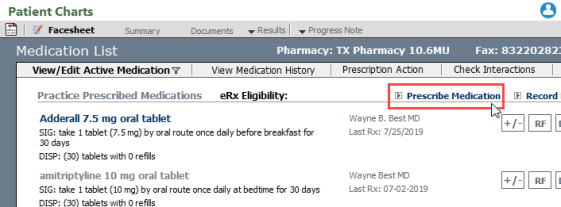
- Select the Medication List icon on the Facesheet. In the Medications List window, select Prescribe Medication.
- Select Prescribe New Medication from the Plan section of a Note.

| 2. | Enter the information for the prescription. Ensure you document at least the following fields: |
|
|
|
|
|
|
|
|
While the duration field is not required, it helps calculate the completion date for the prescription.
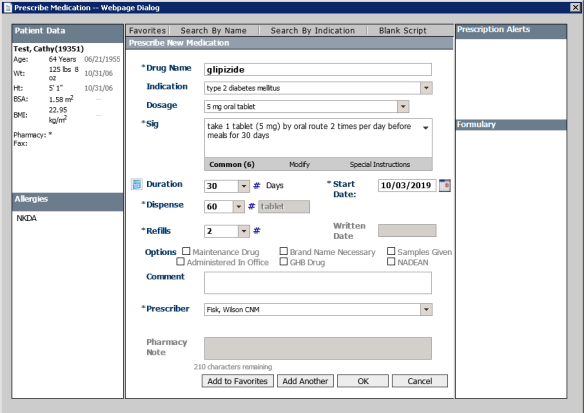
| 3. | Select OK to prescribe the selected medication and close the Prescribe Medication dialog box. |


