Including Data in Prime Suite Reporting
Before using Prime Suite Reporting, you must configure a provider group in Prime Suite's Group Administration. The RegulatoryReportingParticipants group must include each provider who participates in regulatory reporting. If a provider is not included in this group, their data will not be loaded to the dashboard and will not be included in any submission data produced through the dashboard.
Only data for providers included in the RegulatoryReportingParticipants group will be available in Prime Suite Reporting. Until the RegulatoryReportingParticipants group includes at least one provider, Prime Suite Reporting will not display any measure data . After adding providers to the RegulatoryReportingParticipants group, nightly data processing must occur before the provider's performance information will be available in Prime Suite Reporting.
Configuring the RegulatoryReportingParticipants Group
The RegulatoryReportingParticipants group is delivered as part of your Prime Suite system. You must be using Prime Suite version 18.00.00.20 or higher in order to have access to the this group. If you do not see the RegulatoryReportingParticipants group in your Prime Suite system, please contact Greenway Health support.
The following steps must be followed if you participate in regulatory reporting using Prime Suite Reporting. If you do not configure the RegulatoryReportingParticipants group for your practice, Prime Suite Reporting will not display any measure data.
To configure the RegulatoryReportingParticipants group:
| 1. | Go to System > Group Administration. |
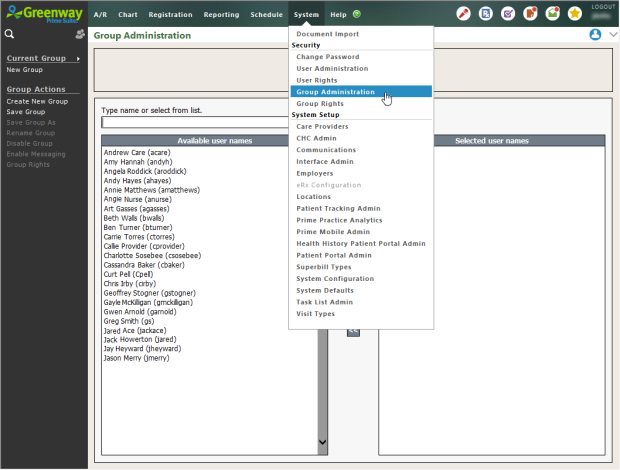
| 2. | Select Current Group in the upper-left corner of the screen. |
| 3. | The Group List window is displayed. This window allows you to select an existing group for editing. |
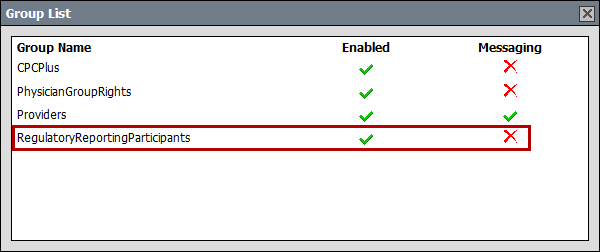
| 4. | Select the RegulatoryReportingParticpants group. |
The first time you open the RegulatoryReportingParticpants group, it will not contain any providers. Until you add at least one provider, no measure data will be displayed on the dashboard.
| 5. | Select each provider that participates in regulatory reporting. You can double-click the provider’s name or select the > button to move the provider's name to the Selected User Names list. |
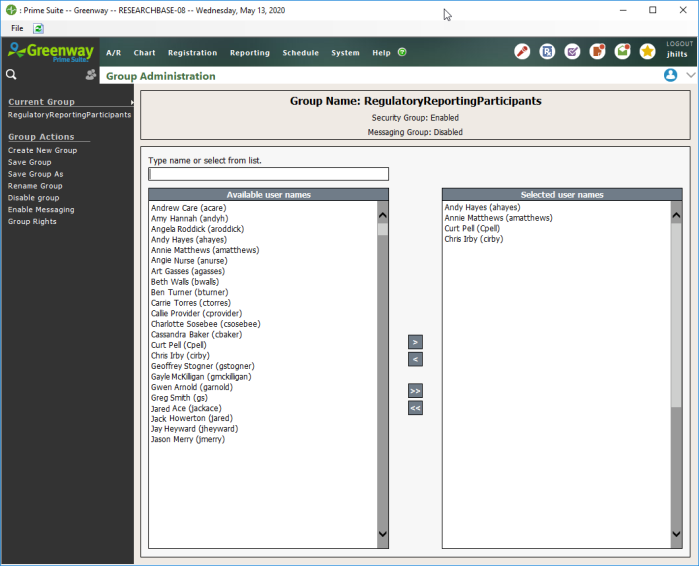
You can remove providers from the Selected User Names list by double-clicking their name or selecting the < button. Clear the Selected User Names list by selecting the << button.
| 6. | Select Save Group. |
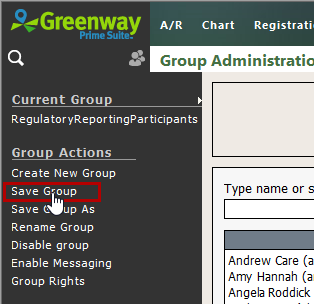
| 7. | Your changes are saved. Only data for the providers included in the RegulatoryReportingParticipants group will be available in PSR 2020. |
Nightly data processing must occur before changes to the RegulatoryReportingParticipants group are reflected in PSR 2020. If you add or remove providers from this group, you must wait for the nightly data processing data to occur in order to see the update in PSR 2020.


