CPC+ Configuration and Submission
This measure's logic has been updated for the 2020 Reporting Year. However, this measure will not be finalized until Prime Suite Reporting v2020.2 is released. This preview documentation may change without notice.
A QRDA III file is required to submit CPC+ data through the Quality Payment Program (QPP) website. To generate a QRDA III file, you must first configure CPC+ provider groups in Prime Suite. You can then export a QRDA III file for CPC+ submission from Prime Suite Reporting.
Providers participating in CPC+ must first be included in the Regulatory Reporting Group for their reporting data to pull into the CPC+ dashboard. See Including Data in Prime Suite Reporting for more information.
Configuring CPC+ Provider Groups
When reporting on the CPC+ program, each practice must indicate which providers are participating in the program. If you do not use the following information to configure the CPC+ provider groups for your practice, your measure calculations may not be correct.
To configure CPC+ provider groups:
| 1. | Go to System > Group Administration. |
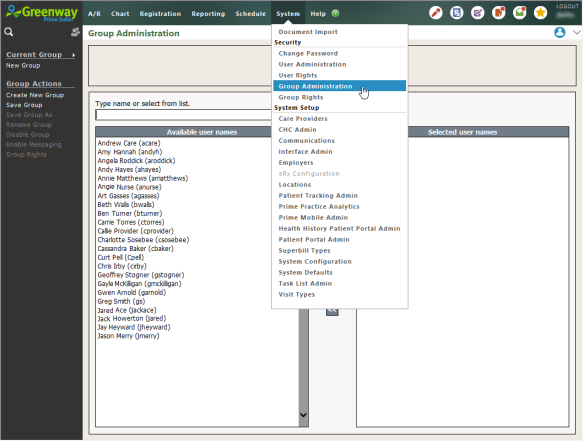
| 2. | Select the providers included in your CPC+ roster. You can double-click the provider’s name or select the > button to move the provider's name to the Selected User Names list. |
Each provider can only be included in one CPC+ reporting group. If a provider is listed in more than one group that begins with “CPC,” the data processing for all groups that contain a duplicate provider will fail.
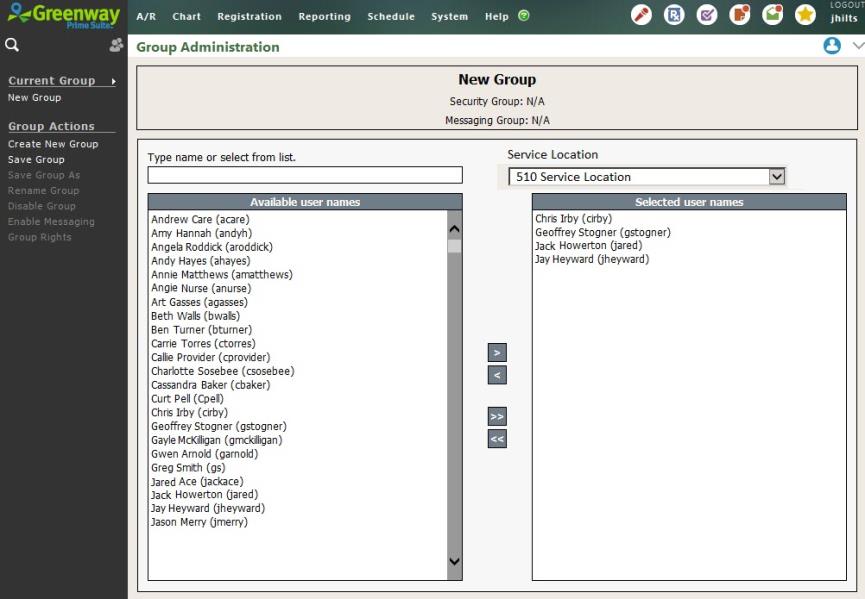
| 3. | Select a practice in the Service Location drop-down menu. |
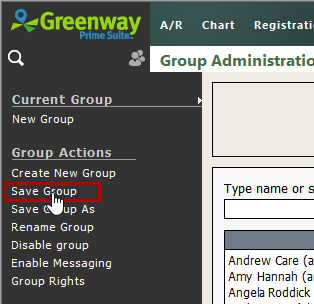
| 4. | Select Save Group. |
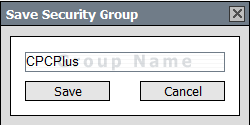
| 5. | In the Save Security Group dialog box that's displayed, enter a group name and select Save. Remember, group names must begin with CPC. A provider can only be in one group whose name begins with CPC. If a provider is listed in more than one group that begins with CPC, the data processing for all groups that contain a duplicate provider will fail. |
Exporting a QRDA III File for CPC+ Submission
To export a QRDA III file in Prime Suite Reporting 2020 for CPC+ reporting, use the following workflow. A QRDA III file is required for CPC+ data submission through the Quality Payment Program (QPP) website.
When reporting on the CPC+ program, each practice must indicate which providers are participating in the program. See Configuring CPC+ Provider Groups for more information.
To export a QRDA III file:
| 1. | After logging on to Prime Suite Reporting 2020, select a CPC+ group from the Groups page. The selected group's Overview page appears. |
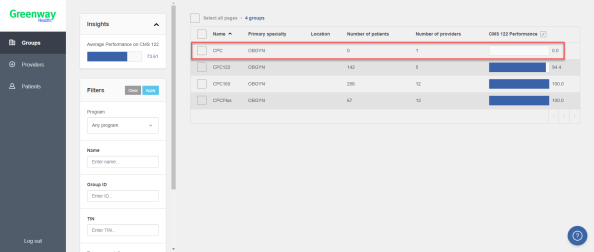
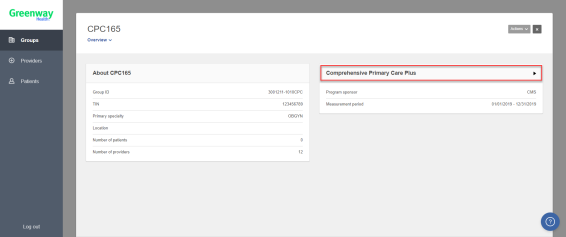
| 2. | On the group's Overview page, select the Comprehensive Primary Care Plus header. The group's Details page appears. |
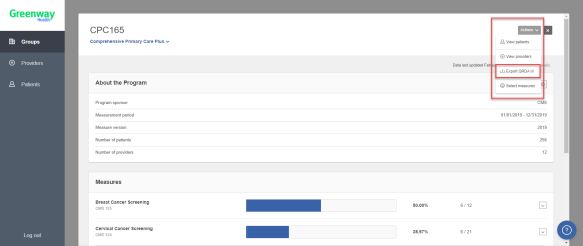
| 3. | On the group's Details page, select Export QRDA III from the Actions drop-down menu on the top right corner of the screen. |
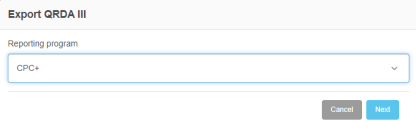
| 4. | From the Export QRDA III menu, select CPC+ as the reporting program and select Next. |
| 5. | From the next screen of the Export QRDA III menu, complete the following: |
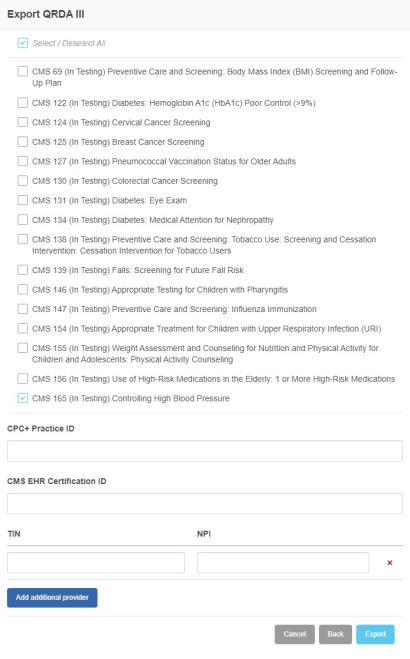
| a. | Check the box next to each eCQM measure on which you want to report. |
| b. | Enter the CPC+ Practice ID. |
| c. | Enter the CMS EHR Certification ID. |
| d. | Enter the provider's TIN (Tax Identification Number) and NPI (National Provider Identifier). |
| e. | To enter another provider's information, select Add Additional Provider and enter the provider's TIN and NPI. |
| 6. | After entering the required information, select Export. You will receive a confirmation message stating that the data export has started and that you will receive an email when the export is completed. |
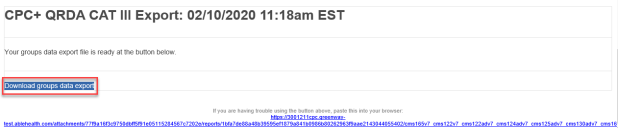
| 7. | Open the email with the QRDA III file. The file will be sent to the email address associated with the user logged on to Prime Suite Reporting 2020. |
| 8. | In the email, select the Download groups data export link to download the file to your computer. |
| 9. | Submit the QRDA III file through the Quality Payment Program (QPP) website using your practice's standard workflow. |


